
Canvas
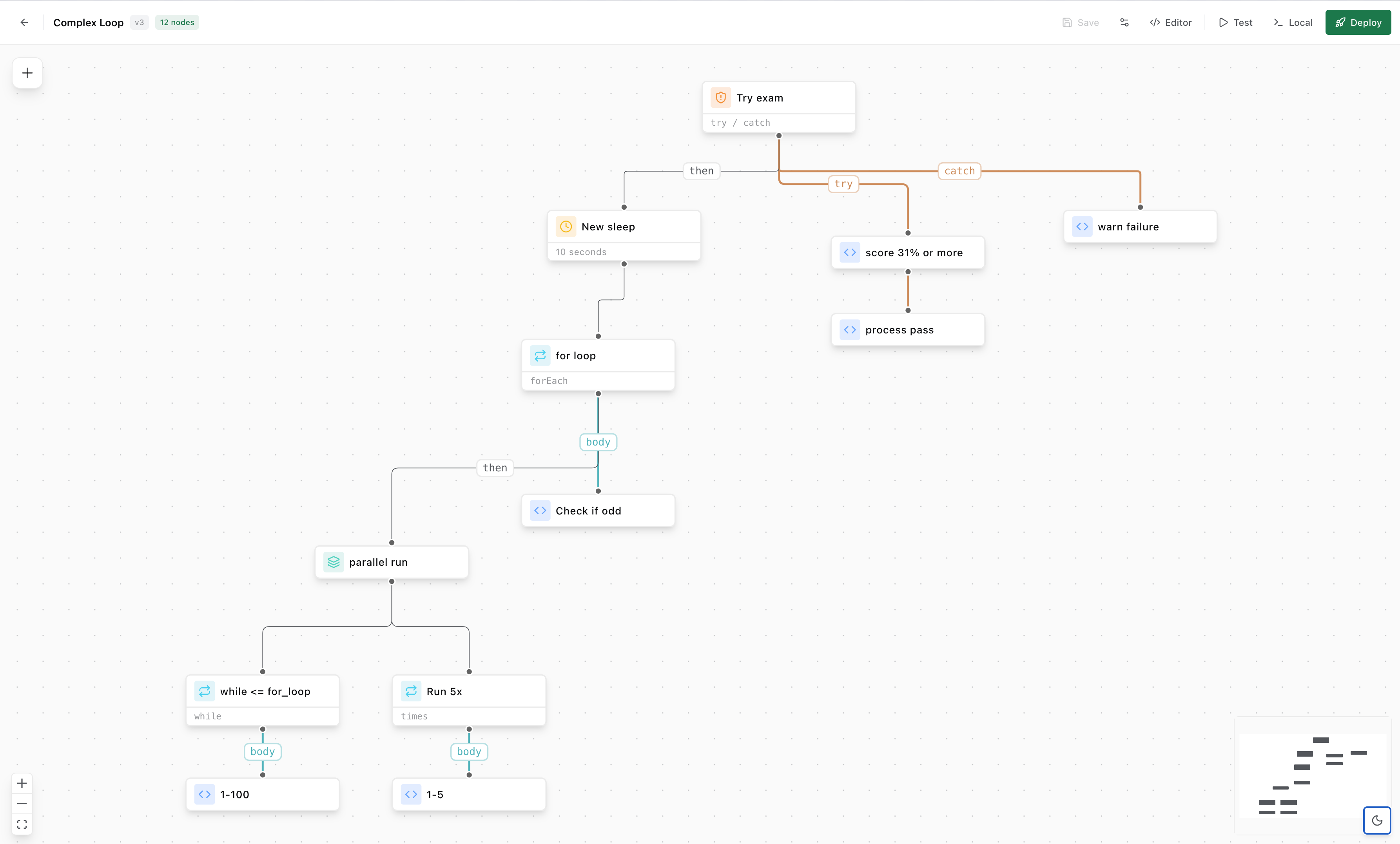
The canvas is the visual workflow editor in AwaitStep. It is built on XYFlow (formerly React Flow) and provides a spatial, node-graph interface for building workflows.
Adding Nodes
Open the node picker by clicking the + Add Node button in the toolbar, or by right-clicking an empty area of the canvas. Nodes are grouped by category (Control Flow, HTTP, Scheduling, etc.).
Drag a node from the picker onto the canvas to place it. You can also click a node in the picker to add it at the center of the viewport.
Connecting Nodes
Hover over a node to reveal its connection handles — a source handle on the bottom and a target handle on the top. Drag from a source handle to a target handle on another node to create an edge.
Branch nodes have multiple source handles, one per condition path. Each outgoing edge from a branch node can be labeled with the condition expression it represents.
TIP
Double-click an edge label to edit the branch condition directly on the canvas.
The Config Panel
Selecting a node opens the config panel in the right sidebar. The config panel renders form controls automatically from the node's configSchema.
Each field type renders a different control:
| Type | Control |
|---|---|
string | Single-line text input |
number | Numeric input with min/max validation |
boolean | Toggle switch |
select | Dropdown with predefined options |
multiselect | Multi-select dropdown |
secret | Masked input that binds to an environment variable |
code | Monaco editor in TypeScript mode |
json | Monaco editor in JSON mode |
expression | Text input with {{nodeId.property}} autocomplete |
textarea | Multi-line text area |
Expression Autocomplete
Fields of type expression provide autocomplete for the outputs of upstream nodes. Type {{ to trigger the suggestion popup. Suggestions are drawn from the outputSchema of each upstream node.
{{fetch_user.email}}
{{charge_result.amount}}
Only nodes that are topologically upstream of the current node appear in autocomplete. The editor shows an error indicator if an expression references a downstream node or a node that does not exist.
Secrets
Secret fields do not store values directly. Instead, they bind to a named environment variable that you configure in the Environment panel. The variable name is defined in the node's configSchema via envVarName. At deploy time, secrets are uploaded to Cloudflare via wrangler secret put.
WARNING
Secret values are never stored in the IR or in the AwaitStep database. They exist only in your Cloudflare Worker's encrypted secret store.
The Editor Panel
The bottom panel has four tabs:
Code
A read-only Monaco editor showing the TypeScript code that will be compiled from the current workflow IR. Updates in real time as you edit the canvas. Useful for understanding what gets deployed.
IR
A read-only JSON view of the current WorkflowIR. Shows the raw IR that is saved to the database and passed to the codegen pipeline.
Triggers
Configure how the workflow is started:
- Manual — only started via the AwaitStep UI or API
- HTTP — triggered by an incoming HTTP request to a generated endpoint
Dependencies
If your workflow uses custom nodes that require npm packages, they are listed here. Dependencies are installed in the deploy directory before wrangler deploy is called.
Validation
The canvas continuously validates the workflow as you edit. Validation errors are shown as red badges on affected nodes and as a list in the bottom bar.
Common validation errors:
- Missing required config — a required field on a node has no value.
- Disconnected node — a node has no incoming edges and is not the entry node.
- Forward expression reference — a config field references the output of a downstream node.
- Invalid expression — an expression references a node ID that does not exist in the workflow.
- Invalid IR — the IR fails schema validation (e.g. missing
entryNodeId).
INFO
Validation runs locally in the browser using the same validateIR function from @awaitstep/ir that the API uses before deploy. If the canvas shows no errors, the deploy will not fail due to validation.
Keyboard Shortcuts
| Shortcut | Action |
|---|---|
Backspace / Delete | Delete selected nodes or edges |
Escape | Deselect all |
Shift + drag | Select multiple nodes (lasso) |
| Click + drag (canvas) | Pan the canvas |
| Scroll wheel | Zoom in/out |